Grid Drawing | Create Custom Grids for Art - Overlay a grid on any image for precise drawing.
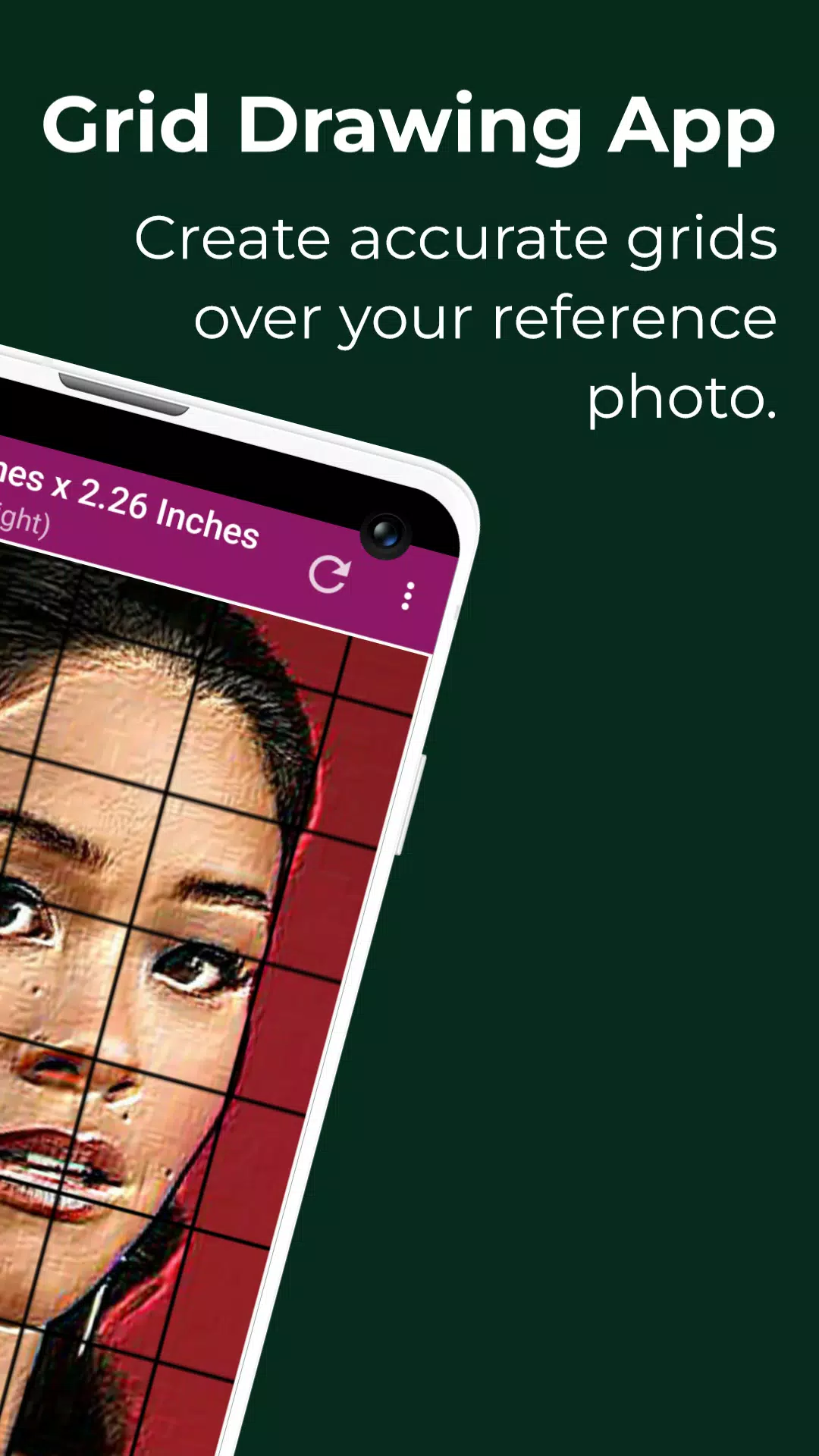
Grid Drawing is an artistic method where you place a grid over a reference photo and replicate a grid with the same proportions on your drawing surface—such as paper, canvas, or wood. The artist reproduces the image section by section, concentrating on one square at a time until the entire picture is accurately transferred.
This technique offers a structured and effective way to enhance your artistic skills, ensuring the final drawing is proportionate and true to the original. It serves as an essential learning tool for artists at every stage.
Key advantages of Grid Drawing include maintaining proportions, scaling images up or down, breaking complex subjects into manageable parts, sharpening observation, refining hand-eye coordination, and building confidence.
The Grid Maker For Drawing app divides your reference image into a customizable grid of rows and columns, with each square representing a segment of the overall picture. Artists can then redraw each square at a larger scale, one by one, with high precision.
Using the Grid Maker app also helps improve your drawing technique by preserving proportions and crucial image details.
The Grid Drawing app includes a variety of tools and customizations to help you transfer reference images to your artwork efficiently and accurately.
Drawing Grid For The Artist supports both novices and experienced artists in developing better observation and drawing abilities.
Key features of Grid Maker For Drawing With Measurements –
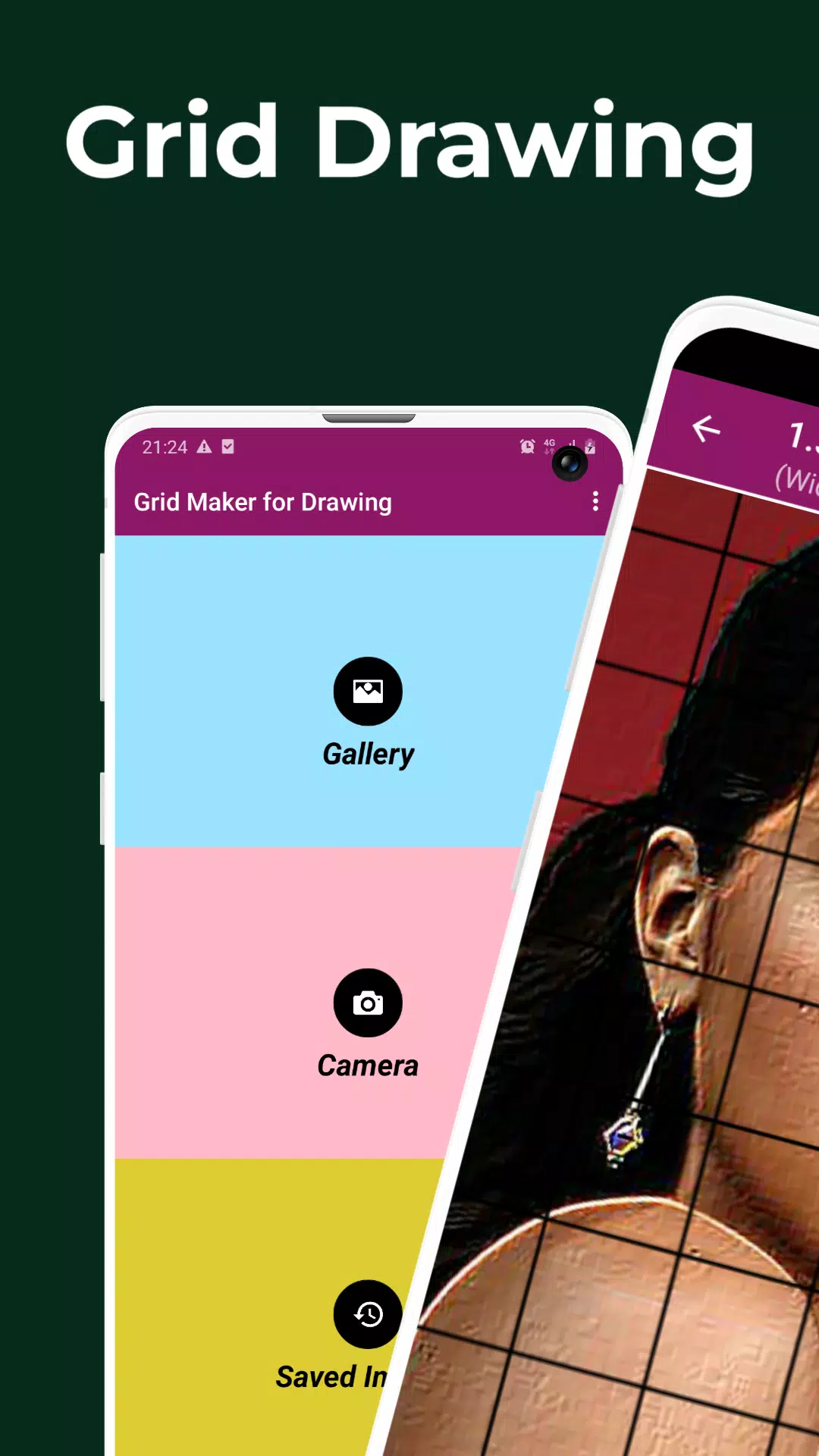
1. Capture a new photo using your camera. Supports JPEG, PNG, and WEBP formats.
2. Choose an existing photo from your gallery. Supports JPEG, PNG, and WEBP formats.
3. Import or share images from file managers and other apps. Supports JPEG, PNG, and WEBP formats.
4. Square grid layouts
5. Rectangular grid layouts
6. Toggle grid overlay on or off
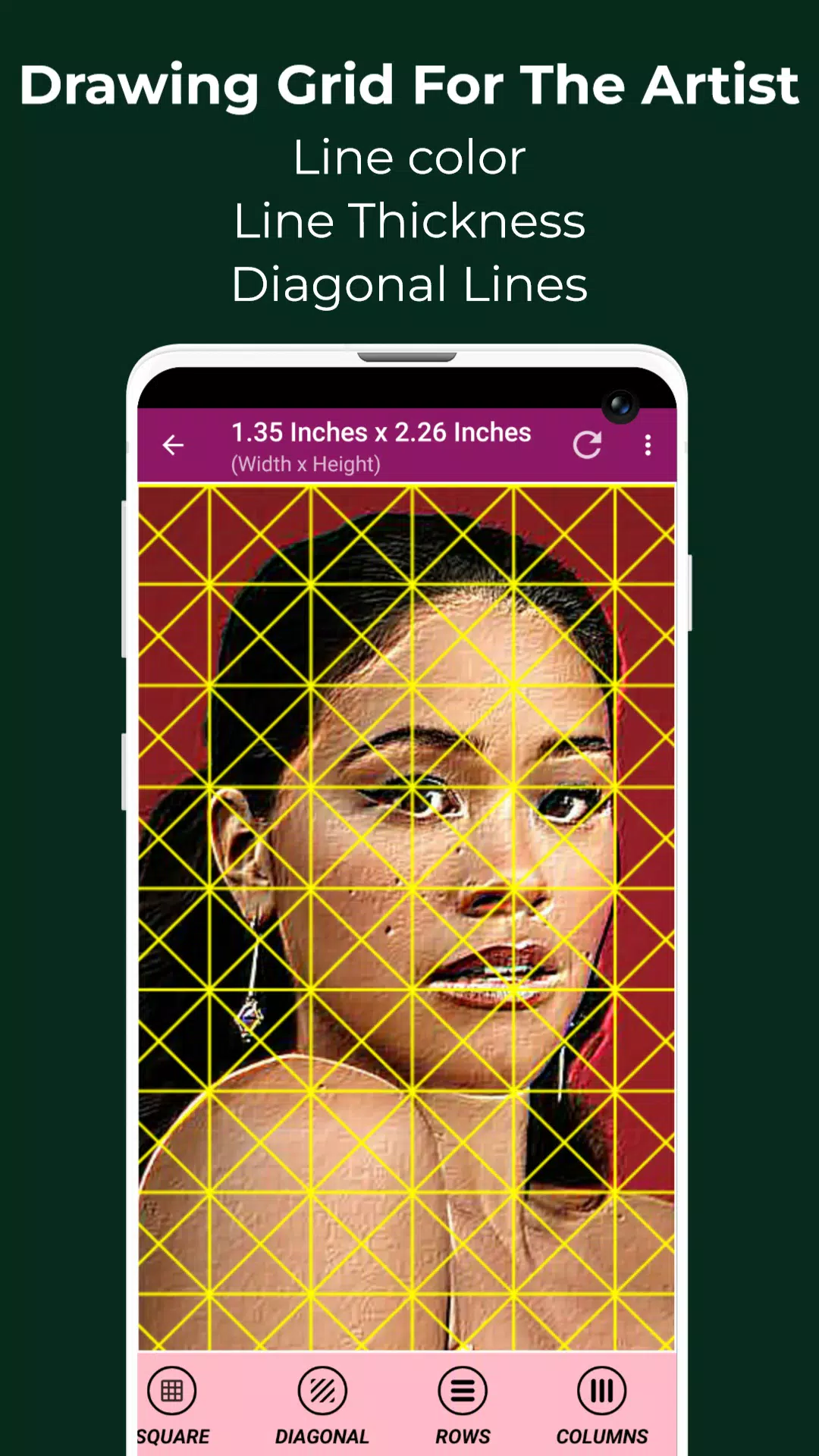
7. Diagonal grid lines
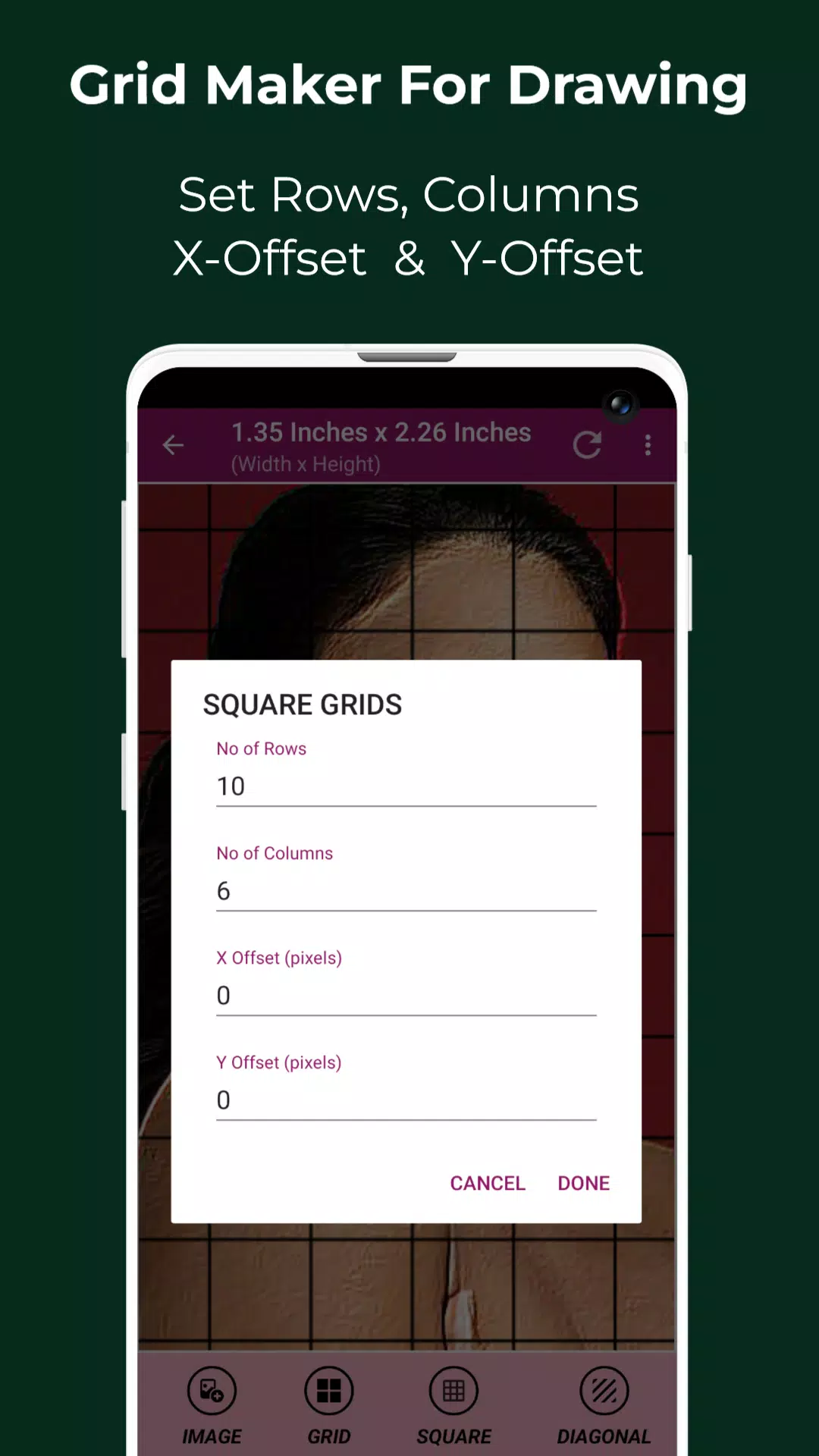
8. Set the number of rows and Y-axis offset
9. Set the number of columns and X-axis offset
10. Select your preferred grid color
11. Enable or disable grid labeling
12. Adjust label size and alignment (top, bottom, left, right)
13. Increase or decrease grid line thickness
14. Image measurements – view image dimensions in units including Pixels (px), Inches (in), Millimeters (mm), Points (pt), Picas (pc), Centimeters (cm), Meters (m), Feet (ft), and Yards (yd)
15. Cell measurements – view grid cell dimensions in the same range of units
16. Full screen mode
17. Compare Drawing – overlay your drawing with the reference image in real time
18. Lock screen orientation
19. Pixel tool – inspect HEX, RGB, and CMYK values of any pixel in the reference
20. Zoom in or out up to 50x
21. Enable or disable zooming
22. Apply effects – Black and white, Bloom, Cartoon, Crystal, Emboss, Glow, Grayscale, HDR, Invert, Lomo, Neon, Old school, Pixel, Polaroid, Sharpen, and Sketch
23. Crop image – choose from Fit image, Square, 3:4, 4:3, 9:16, 16:9, 7:5, or custom ratio
24. Rotate image 360 degrees
25. Flip image vertically or horizontally
26. Adjust brightness, contrast, saturation, and hue
27. Save, share, and print gridded images
28. Saved Images – easily access all your previously saved grids
Grid Drawing is the ultimate tool for artists of all levels who value precision, accuracy, and continuous improvement in their creative work.
Contact us anytime with questions or feedback. Thank you.